Best VPS for AI Agents (2025) — Complete Setup Guide
Running AI agents on your own infrastructure gives you full control. For API deployment, see Deploy FastAPI on VPS over data privacy, cost, and customization. Whether you are deploying LangChain pipelines, AutoGPT instances. Compare providers in Inferno vs Hetzner, CrewAI multi-agent systems, or custom LLM-powered tools, a properly configured VPS provides the dedicated resources these workloads demand. This guide covers everything you need to choose, configure, and optimize a VPS for AI agent hosting in 2025.
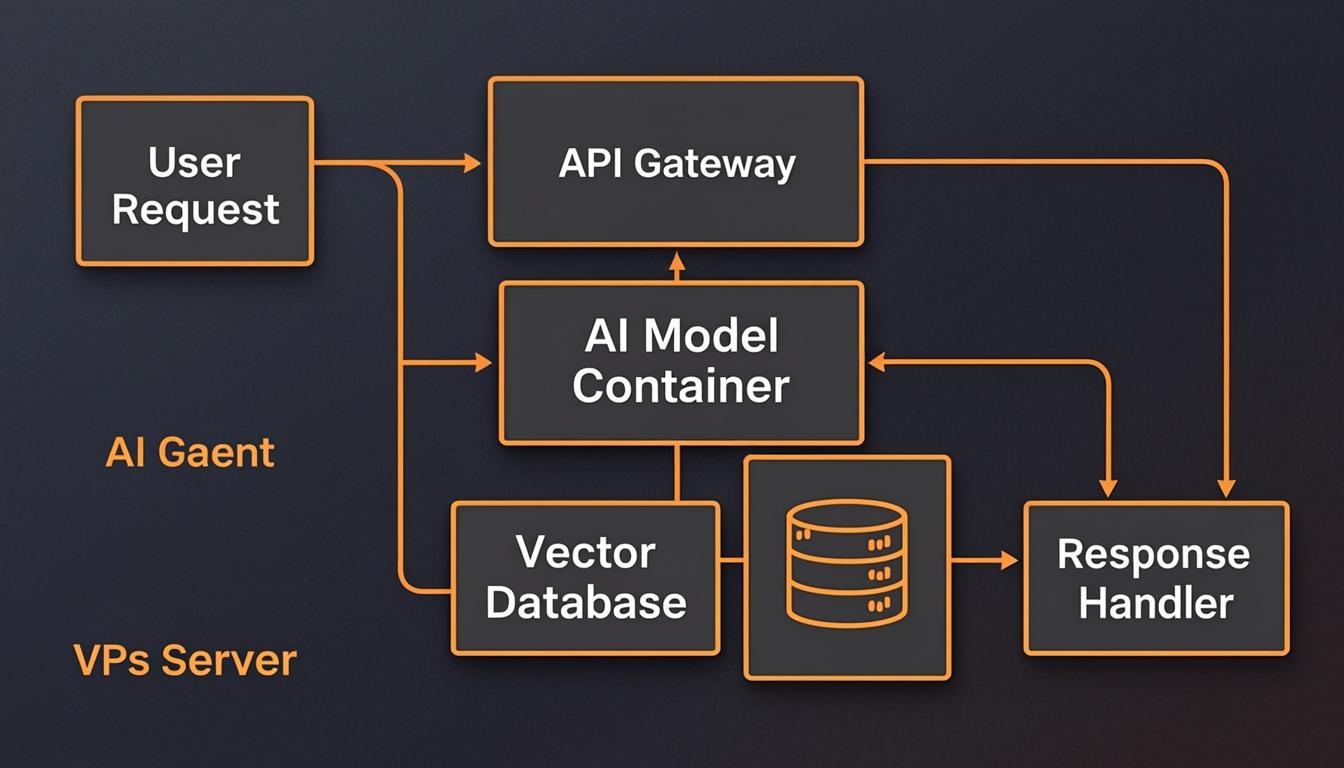
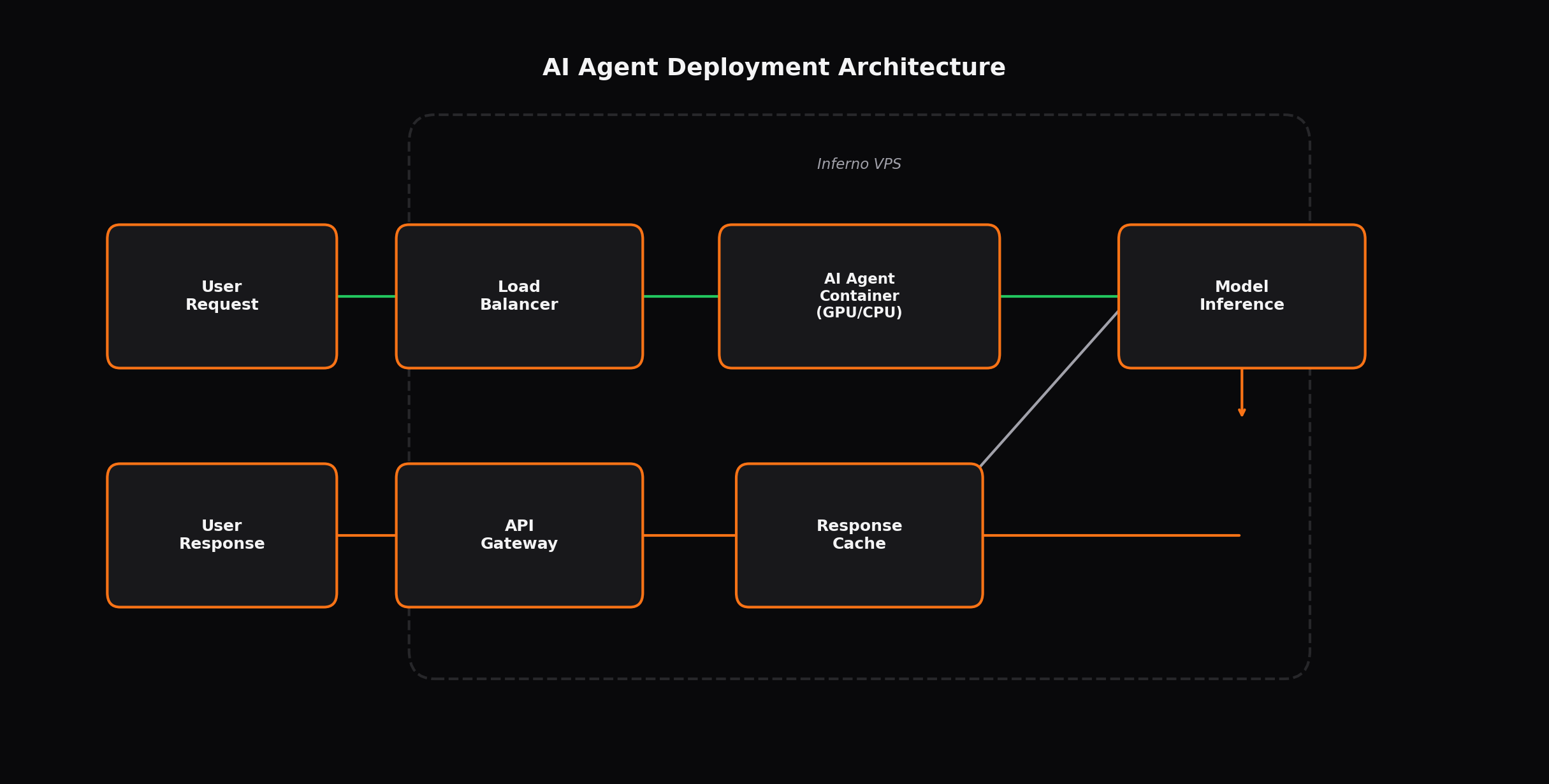
Why Host AI Agents on a VPS Instead of Cloud Services
Cloud platforms like AWS, Google Cloud, and Azure offer managed AI services, but they come with significant trade-offs for individual developers and small teams. Understanding these differences is critical before committing to any hosting strategy. For EU locations, see Germany VPS and Netherlands VPS.
Cost predictability
Cloud AI services typically charge per-token or per-compute-hour with variable pricing that spikes during heavy usage. A VPS provides flat monthly billing regardless of how many requests your agents process. For a production agent handling thousands of API calls daily, a $20/month VPS can replace cloud bills that range from $100 to $500+ per month. The cost advantage becomes even more pronounced when running multiple agents or long-lived background processes.
Data privacy and compliance
Self-hosting AI agents means your data never leaves your server. This is essential for organizations handling sensitive information, proprietary business logic, or customer data subject to GDPR, HIPAA, or SOC 2 requirements. When you send prompts to third-party API endpoints, that data is processed on infrastructure you do not control. Running your own LLM inference and agent logic eliminates this exposure entirely.
No vendor lock-in
Managed AI platforms change APIs, deprecate features, and adjust pricing with minimal notice. A VPS running your own Docker containers is portable — you can migrate to any provider that supports Linux and Docker. Your agent code, model weights, and configuration files move with you.
Full customization
Cloud AI services constrain you to their supported models, frameworks, and configurations. On a VPS, you install any version of Python, Node.js, or system libraries your agents require. You can run bleeding-edge models from Hugging Face, customize system prompts, modify agent memory strategies, and integrate with any external service without requesting API access or waiting for feature approvals.
Hardware Requirements for AI Agent Workloads
AI agent resource requirements vary dramatically depending on what the agent does. A simple chatbot that routes messages through an external LLM API needs minimal resources. A multi-agent system running local LLM inference with retrieval-augmented generation (RAG) demands significantly more compute and memory.
| Workload | vCPUs | RAM | Storage | Use Case |
|---|---|---|---|---|
| Simple API bots | 1 | 1 GB | 20 GB SSD | Bots calling OpenAI/Claude APIs, basic web scraping agents |
| LangChain / CrewAI | 2 | 4 GB | 40 GB SSD | Chain-of-thought agents, tool-using agents, vector DB + RAG |
| Multi-agent systems | 4 | 8 GB | 80 GB SSD | CrewAI orchestrations, AutoGPT, concurrent agent pipelines |
| LLM + RAG (local inference) | 8 | 16 GB | 100 GB NVMe | Running Llama 3 / Mistral locally, full RAG pipelines, embeddings |
CPU considerations
For agents that rely on external API calls (OpenAI, Anthropic, Google), CPU performance matters less than network latency and RAM. However, if you plan to run local inference with models smaller than 14B parameters, CPU single-thread performance directly impacts token generation speed. AMD EPYC and Intel Xeon processors available on modern VPS platforms deliver acceptable inference speeds for development and moderate production use. For larger models or high-throughput inference, consider a GPU-equipped VPS or a dedicated server.
Storage
SSD storage is non-negotiable. Vector databases (Chroma, Weaviate, Qdrant) perform frequent read/write operations during RAG retrieval. NVMe SSDs reduce query latency by 3-5x compared to SATA SSDs. Model weights for popular open-source LLMs range from 4 GB (Llama 3 8B 4-bit) to 40+ GB (Mixtral 8x7B). Plan your storage allocation with headroom for agent logs, vector databases, and future model downloads.
Setting Up Your VPS for AI Agents
This section provides a complete step-by-step setup for Ubuntu 22.04 LTS, the most widely supported distribution for AI agent frameworks.
Step 1: System update and基础 dependencies
# Update system packages
sudo apt update && sudo apt upgrade -y

# Install essential build tools and libraries
sudo apt install -y build-essential git curl wget software-properties-common \
    python3 python3-pip python3-venv libssl-dev pkg-config

# Install Docker using the official repository
curl -fsSL https://get.docker.com | sudo sh

# Add your user to the Docker group (log out and back in after)
sudo usermod -aG docker $USER

# Verify Docker installation
docker --version
docker compose version
Step 2: Install Ollama for local LLM inference
Ollama is the most straightforward way to run open-source LLMs on a VPS. It handles model downloading, quantization, and provides a local API compatible with OpenAI's interface.
# Install Ollama
curl -fsSL https://ollama.com/install.sh | sh

# Start the Ollama service
sudo systemctl start ollama
sudo systemctl enable ollama

# Pull Llama 3 8B (4-bit quantized, ~4.7 GB download)
ollama pull llama3:8b

# Test inference
ollama run llama3:8b "Explain quantum computing in 3 sentences"

# Ollama runs on port 11434 by default
# Verify it is listening
curl http://localhost:11434/api/tagsollama list to see downloaded models and ollama rm <model> to free disk space.
Step 3: Run AI Agents with Docker Compose
The following Docker Compose configuration sets up a complete AI agent stack with Ollama, a LangChain agent, and a Chroma vector database for RAG.
# Create project directory
mkdir -p ~/ai-agents && cd ~/ai-agents

# Create docker-compose.yml
cat > docker-compose.yml << 'EOF'
version: '3.8'

services:
  ollama:
    image: ollama/ollama:latest
    container_name: ollama
    ports:
      - "11434:11434"
    volumes:
      - ollama_data:/root/.ollama
    deploy:
      resources:
        reservations:
          memory: 4G
    restart: unless-stopped

  chromadb:
    image: chromadb/chroma:latest
    container_name: chromadb
    ports:
      - "8000:8000"
    volumes:
      - chroma_data:/chroma/chroma
    environment:
      - IS_PERSISTENT=TRUE
      - ANONYMIZED_TELEMETRY=FALSE
    restart: unless-stopped

  langchain-agent:
    build: ./agent
    container_name: langchain-agent
    ports:
      - "8501:8501"
    environment:
      - OLLAMA_BASE_URL=http://ollama:11434
      - CHROMA_HOST=chromadb
      - CHROMA_PORT=8000
    depends_on:
      - ollama
      - chromadb
    restart: unless-stopped

volumes:
  ollama_data:
  chroma_data:
EOF
Step 4: Create the LangChain agent Dockerfile
# Create agent directory
mkdir -p ~/ai-agents/agent && cd ~/ai-agents/agent

# Create requirements.txt
cat > requirements.txt << 'EOF'
langchain>=0.2.0
langchain-community>=0.2.0
langchain-ollama>=0.1.0
chromadb>=0.4.0
sentence-transformers>=2.2.0
streamlit>=1.32.0
EOF

# Create Dockerfile
cat > Dockerfile << 'EOF'
FROM python:3.11-slim

WORKDIR /app

COPY requirements.txt .
RUN pip install --no-cache-dir -r requirements.txt

COPY . .

EXPOSE 8501

CMD ["streamlit", "run", "app.py", "--server.port=8501", "--server.address=0.0.0.0"]
EOF

# Create a sample agent application
cat > app.py << 'PYEOF'
import streamlit as st
from langchain_ollama import ChatOllama
from langchain_community.vectorstores import Chroma
from langchain_community.embeddings import HuggingFaceEmbeddings
from langchain_text_splitters import RecursiveCharacterTextSplitter
from langchain.chains import create_retrieval_chain
from langchain.chains.combine_documents import create_stuff_documents_chain
from langchain_core.prompts import ChatPromptTemplate
import os

st.title("AI Agent with RAG")

llm = ChatOllama(
    model="llama3:8b",
    base_url=os.environ.get("OLLAMA_BASE_URL", "http://localhost:11434"),
    temperature=0.7
)

embeddings = HuggingFaceEmbeddings(model_name="all-MiniLM-L6-v2")
vectorstore = Chroma(
    persist_directory="./chroma_db",
    embedding_function=embeddings,
    collection_name="documents"
)

retriever = vectorstore.as_retriever(search_kwargs={"k": 3})

system_prompt = (
    "You are a knowledgeable AI assistant. Use the following retrieved "
    "context to answer the question. If you do not know the answer, say so."
    "\n\nContext: {context}"
)

prompt = ChatPromptTemplate.from_messages([
    ("system", system_prompt),
    ("human", "{input}")
])

question_answer_chain = create_stuff_documents_chain(llm, prompt)
rag_chain = create_retrieval_chain(retriever, question_answer_chain)

query = st.text_input("Ask your AI agent:")
if query:
    with st.spinner("Processing..."):
        response = rag_chain.invoke({"input": query})
        st.write(response["answer"])
PYEOF
Step 5: Start the stack
# From ~/ai-agents directory
docker compose up -d

# Pull model inside the Ollama container
docker exec ollama ollama pull llama3:8b

# View logs
docker compose logs -f

# Check resource usage
docker stats
API Endpoint Setup for Production
Exposing your AI agent to the internet requires a reverse proxy, SSL certificate, and proper security configuration. The following setup uses Nginx and Let's Encrypt.
# Install Nginx and Certbot
sudo apt install -y nginx certbot python3-certbot-nginx

# Create Nginx configuration for your agent
sudo tee /etc/nginx/sites-available/ai-agent << 'EOF'
server {
    listen 80;
    server_name agent.yourdomain.com;

    location / {
        proxy_pass http://127.0.0.1:8501;
        proxy_set_header Host $host;
        proxy_set_header X-Real-IP $remote_addr;
        proxy_set_header X-Forwarded-For $proxy_add_x_forwarded_for;
        proxy_set_header X-Forwarded-Proto $scheme;
        proxy_read_timeout 300s;
        proxy_connect_timeout 300s;
    }

    location /ollama/ {
        proxy_pass http://127.0.0.1:11434/;
        proxy_set_header Host $host;
        proxy_read_timeout 300s;
    }
}
EOF

# Enable the site
sudo ln -s /etc/nginx/sites-available/ai-agent /etc/nginx/sites-enabled/
sudo nginx -t
sudo systemctl reload nginx

# Obtain SSL certificate
sudo certbot --nginx -d agent.yourdomain.com
Monitoring Your AI Agents
Continuous monitoring prevents outages and helps you optimize resource allocation. Use these tools on your VPS.
System resource monitoring
# Install htop for interactive process monitoring
sudo apt install -y htop
htop

# Check memory usage by Docker containers
docker stats --no-stream --format "table {{.Name}}\t{{.CPUPerc}}\t{{.MemUsage}}"

# Monitor disk I/O (important for vector DB performance)
sudo apt install -y iotop
sudo iotop

# Check available memory in human-readable format
free -h

# Monitor Ollama model performance
curl http://localhost:11434/api/ps
Logging and alerting
# Configure Docker to use JSON logging with size limits
sudo tee /etc/docker/daemon.json << 'EOF'
{
  "log-driver": "json-file",
  "log-opts": {
    "max-size": "10m",
    "max-file": "3"
  }
}
EOF
sudo systemctl restart docker

# Set up a simple health check script
cat > ~/ai-agents/healthcheck.sh << 'EOF'
#!/bin/bash
# Check if Ollama is responding
if ! curl -sf http://localhost:11434/api/tags > /dev/null; then
    echo "Ollama is down, restarting..."
    docker restart ollama
fi

# Check if the agent is responding
if ! curl -sf http://localhost:8501 > /dev/null; then
    echo "Agent is down, restarting..."
    docker restart langchain-agent
fi
EOF
chmod +x ~/ai-agents/healthcheck.sh

# Add to crontab (run every 5 minutes)
(crontab -l 2>/dev/null; echo "*/5 * * * * ~/ai-agents/healthcheck.sh") | crontab -
Optimizing Performance on a VPS
Swap configuration
If your VPS has limited RAM, configure swap space to prevent out-of-memory crashes during model loading. This provides a safety net at the cost of slower performance when swap is used.
# Create a 4 GB swap file
sudo fallocate -l 4G /swapfile
sudo chmod 600 /swapfile
sudo mkswap /swapfile
sudo swapon /swapfile

# Make it persistent across reboots
echo '/swapfile none swap sw 0 0' | sudo tee -a /etc/fstab

# Adjust swappiness (lower value = less aggressive swap usage)
echo 'vm.swappiness=10' | sudo tee -a /etc/sysctl.conf
sudo sysctl -p
Model selection for VPS constraints
Choose models that fit your VPS resources. The following table lists popular models by approximate memory footprint.
| Model | Parameters | Quantization | RAM Required | Best For |
|---|---|---|---|---|
| Phi-3 Mini | 3.8B | Q4 | ~2.5 GB | Simple chatbots, classification |
| Llama 3 8B | 8B | Q4_K_M | ~4.8 GB | General-purpose agents, RAG |
| Mistral 7B | 7B | Q4_K_M | ~4.2 GB | Code generation, reasoning |
| Qwen 2 14B | 14B | Q4_K_M | ~8.5 GB | Advanced reasoning, multilingual |
| CodeLlama 34B | 34B | Q4_K_M | ~19 GB | Code generation (requires 16+ GB RAM) |
Pricing Comparison: Inferno vs Competitors
| Provider | 2 vCPU / 4 GB | 4 vCPU / 8 GB | 8 vCPU / 16 GB | Features |
|---|---|---|---|---|
| Inferno VPS | $8/mo | $16/mo | $32/mo | NVMe SSD, DDoS protection, full root |
| DigitalOcean | $18/mo | $36/mo | $72/mo | Managed, backups extra, bandwidth limits |
| Linode (Akamai) | $12/mo | $24/mo | $48/mo | Backup add-on $2/mo, bandwidth caps |
| Hetzner | $5/mo | $10/mo | $20/mo | Limited availability, EU-focused, no phone support |
Pros and Cons: VPS for AI Agents
Advantages
- Flat monthly pricing with no per-token charges
- Full control over models, frameworks, and data
- No vendor lock-in to specific AI platforms
- Docker makes deployment and migration straightforward
- Can run any open-source model from Hugging Face
- Data stays on your server for compliance requirements
- Scalable by upgrading the VPS plan without code changes
Disadvantages
- Requires Linux system administration knowledge
- No managed scaling or auto-load balancing
- GPU VPS options are limited and expensive
- You are responsible for security patches and updates
- Inference speed is lower than cloud GPU services
- No built-in model versioning or A/B testing
- Uptime depends on your configuration and monitoring
Security Best Practices
AI agents process sensitive prompts and data. Secure your VPS with these measures.
# Configure the firewall (UFW)
sudo ufw default deny incoming
sudo ufw default allow outgoing
sudo ufw allow 22/tcp     # SSH
sudo ufw allow 80/tcp     # HTTP
sudo ufw allow 443/tcp    # HTTPS
sudo ufw enable

# Disable root SSH login
sudo sed -i 's/PermitRootLogin yes/PermitRootLogin no/' /etc/ssh/sshd_config
sudo systemctl restart sshd

# Install fail2ban to block brute-force attempts
sudo apt install -y fail2ban
sudo systemctl enable fail2ban
sudo systemctl start fail2ban

# Restrict Ollama to localhost only (verify no external exposure)
curl http://your-server-ip:11434/api/tags
# This should fail — Ollama should only listen on 127.0.0.1
Common Issues and Troubleshooting
Out of memory during model loading
If Ollama crashes when loading a model, the VPS does not have enough RAM. Either upgrade your plan or use a smaller quantized model. Check available memory with free -h and ensure swap space is configured.
Slow inference speed
CPU-bound inference on a VPS generates 2-8 tokens per second depending on the model size and CPU performance. This is acceptable for chatbots and background agents but not for real-time applications. If you need faster inference, consider using API-based models (OpenAI, Anthropic) for latency-sensitive paths while keeping local models for batch processing.
Docker container restarts
If containers crash repeatedly, check logs with docker compose logs <service>. Common causes include insufficient memory limits in docker-compose.yml, missing environment variables, or network connectivity issues between containers.
Scaling Strategy
Start with a 2 vCPU / 4 GB plan for development. When you move to production, upgrade to 4 vCPU / 8 GB. Monitor resource usage with docker stats and htop for one week before deciding if you need more resources. If you start hitting CPU limits (consistently above 80% utilization) during peak usage, upgrade to the 8 vCPU / 16 GB plan. The migration is seamless — your Docker containers and data volumes persist across plan upgrades at Inferno.