Best VPS for n8n (2025) — Self-Host Automation Guide
n8n is a fair-code workflow automation platform. Follow our n8n setup tutorial that lets you connect APIs, databases, and services without writing extensive code. Self-hosting n8n on a VPS gives you full control over your workflows. For Docker hosting, see VPS for Docker environment. This guide covers choosing the right VPS. A Netherlands VPS offers great EU connectivity to a complete production-ready setup with Docker, PostgreSQL, Nginx, and automated backups.
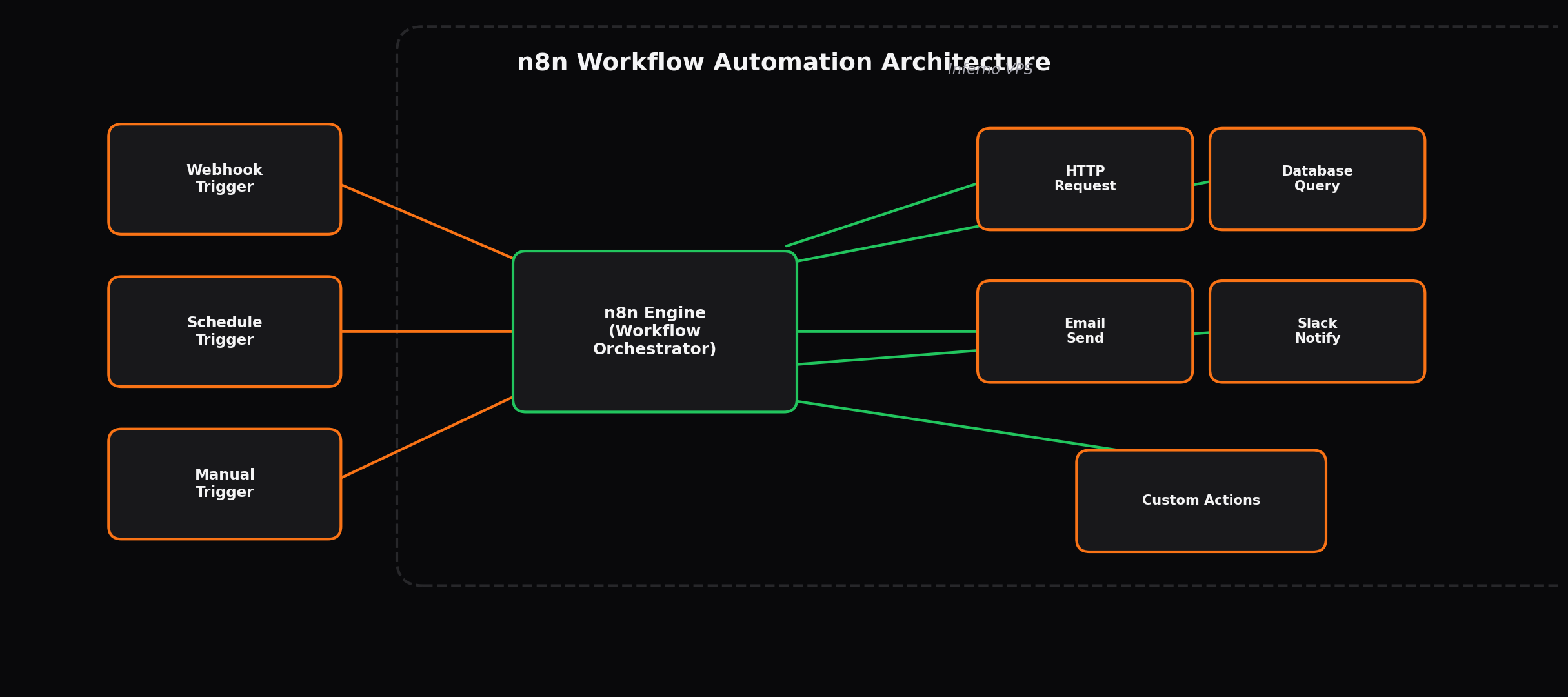
What Is n8n and Why Self-Host It
n8n (pronounced "nodemation") is a workflow automation tool similar to Zapier or Make (formerly Integromat), but designed for technical users who want more flexibility and control. It provides a visual node-based editor where you build automation workflows by connecting pre-built nodes for hundreds of services including Slack, Gmail, GitHub, PostgreSQL, Notion, and custom HTTP endpoints.
The n8n cloud service offers free and paid tiers, but self-hosting provides several critical advantages:
Unlimited workflow executions
The n8n cloud free tier limits you to 2,500 workflow executions per month. The Starter plan ($20/month) allows 10,000 executions. Self-hosted n8n has zero execution limits. You run as many workflows as your hardware supports, which is particularly important for high-frequency automations like webhook handlers, scheduled data synchronization, or event-driven processing pipelines that can generate thousands of executions daily.
No workflow limits
The n8n cloud free tier restricts you to 5 active workflows. Self-hosting removes this cap entirely. Build as many workflows as your use cases demand without worrying about plan upgrades or workflow archiving to stay within limits.
Data sovereignty
Every webhook payload, credential, and intermediate data point processed by n8n passes through your server. This matters when you handle customer data, internal business processes, or any information subject to data protection regulations. Cloud-hosted n8n processes your data on third-party infrastructure.
Custom nodes and integrations
Self-hosted n8n allows you to install custom nodes and community packages that are not available on the cloud platform. You can write your own nodes in TypeScript for proprietary internal APIs or specialized services that n8n does not support natively.
Cost comparison at scale
For users running more than 10 active workflows with moderate execution volume, self-hosting becomes significantly cheaper than n8n cloud. A VPS capable of running n8n with PostgreSQL costs $8-16/month, while equivalent n8n cloud plans range from $20 to $100+ per month depending on execution volume.
System Requirements for Self-Hosted n8n
n8n runs as a Node.js application and is relatively lightweight compared to database servers or machine learning workloads. However, your requirements scale with the complexity and volume of your workflows.
| Deployment | vCPUs | RAM | Storage | Use Case |
|---|---|---|---|---|
| Development / testing | 1 | 1 GB | 15 GB SSD | Building and testing workflows, fewer than 10 active workflows |
| Personal automation | 2 | 2 GB | 25 GB SSD | 10-50 workflows, webhook handlers, scheduled jobs |
| Team / production | 2 | 4 GB | 40 GB SSD | 50+ workflows, high-volume webhooks, PostgreSQL database |
| Heavy production | 4 | 8 GB | 80 GB SSD | Hundreds of workflows, concurrent executions, large data processing |
Why SQLite is insufficient for production
SQLite locks the entire database during writes. When two workflow executions attempt to write simultaneously (which happens frequently with webhook-triggered workflows), one execution will fail or wait. PostgreSQL handles concurrent connections properly and provides ACID compliance, row-level locking, and superior performance for the read-heavy query patterns n8n generates during workflow execution and history lookups.
Complete Docker Setup for n8n with PostgreSQL
This section provides a full production-ready setup using Docker Compose with n8n, PostgreSQL, and Nginx.
Step 1: Prepare the VPS
# Update system packages
sudo apt update && sudo apt upgrade -y

# Install Docker
curl -fsSL https://get.docker.com | sudo sh

# Add your user to the Docker group
sudo usermod -aG docker $USER

# Log out and back in, then verify
docker --version
docker compose version

# Create the n8n project directory
mkdir -p ~/n8n && cd ~/n8n
Step 2: Create environment file
cat > .env << 'EOF'
# n8n configuration
N8N_BASIC_AUTH_ACTIVE=true
N8N_BASIC_AUTH_USER=admin
N8N_BASIC_AUTH_PASSWORD=change_this_strong_password
N8N_HOST=n8n.yourdomain.com
N8N_PORT=5678
N8N_PROTOCOL=https
GENERIC_TIMEZONE=UTC
TZ=UTC

# PostgreSQL credentials
POSTGRES_USER=n8n
POSTGRES_PASSWORD=change_this_db_password
POSTGRES_DB=n8n

# PostgreSQL connection string for n8n
DB_TYPE=postgresdb
DB_POSTGRESDB_HOST=postgres
DB_POSTGRESDB_PORT=5432
DB_POSTGRESDB_DATABASE=n8n
DB_POSTGRESDB_USER=n8n
DB_POSTGRESDB_PASSWORD=change_this_db_password

# Executions
EXECUTIONS_DATA_PRUNE=true
EXECUTIONS_DATA_MAX_AGE=168
EOF

# Secure the environment file
chmod 600 .envopenssl rand -hex 24 to generate secure passwords. Never commit the .env file to version control.
Step 3: Create Docker Compose configuration
cat > docker-compose.yml << 'EOF'
version: '3.8'

services:
  postgres:
    image: postgres:16-alpine
    container_name: n8n-postgres
    restart: unless-stopped
    environment:
      POSTGRES_USER: ${POSTGRES_USER}
      POSTGRES_PASSWORD: ${POSTGRES_PASSWORD}
      POSTGRES_DB: ${POSTGRES_DB}
    volumes:
      - postgres_data:/var/lib/postgresql/data
    healthcheck:
      test: ["CMD-SHELL", "pg_isready -U ${POSTGRES_USER}"]
      interval: 10s
      timeout: 5s
      retries: 5

  n8n:
    image: n8nio/n8n:latest
    container_name: n8n
    restart: unless-stopped
    environment:
      - N8N_BASIC_AUTH_ACTIVE=${N8N_BASIC_AUTH_ACTIVE}
      - N8N_BASIC_AUTH_USER=${N8N_BASIC_AUTH_USER}
      - N8N_BASIC_AUTH_PASSWORD=${N8N_BASIC_AUTH_PASSWORD}
      - N8N_HOST=${N8N_HOST}
      - N8N_PORT=${N8N_PORT}
      - N8N_PROTOCOL=${N8N_PROTOCOL}
      - GENERIC_TIMEZONE=${GENERIC_TIMEZONE}
      - TZ=${TZ}
      - DB_TYPE=${DB_TYPE}
      - DB_POSTGRESDB_HOST=${DB_POSTGRESDB_HOST}
      - DB_POSTGRESDB_PORT=${DB_POSTGRESDB_PORT}
      - DB_POSTGRESDB_DATABASE=${DB_POSTGRESDB_DATABASE}
      - DB_POSTGRESDB_USER=${DB_POSTGRESDB_USER}
      - DB_POSTGRESDB_PASSWORD=${DB_POSTGRESDB_PASSWORD}
      - EXECUTIONS_DATA_PRUNE=${EXECUTIONS_DATA_PRUNE}
      - EXECUTIONS_DATA_MAX_AGE=${EXECUTIONS_DATA_MAX_AGE}
    ports:
      - "5678:5678"
    volumes:
      - n8n_data:/home/node/.n8n
    depends_on:
      postgres:
        condition: service_healthy
    healthcheck:
      test: ["CMD", "wget", "--spider", "-q", "http://localhost:5678/healthz"]
      interval: 30s
      timeout: 10s
      retries: 3

  # Optional: Redis for queue mode (required for scaling)
  redis:
    image: redis:7-alpine
    container_name: n8n-redis
    restart: unless-stopped
    volumes:
      - redis_data:/data

volumes:
  postgres_data:
  n8n_data:
  redis_data:
EOF
Step 4: Start the stack
# Start all services
docker compose up -d

# Verify all containers are running
docker compose ps

# View n8n logs
docker compose logs -f n8n

# Check PostgreSQL is ready
docker exec n8n-postgres pg_isready -U n8n
Step 5: Configure Nginx reverse proxy with SSL
# Install Nginx and Certbot
sudo apt install -y nginx certbot python3-certbot-nginx

# Create Nginx configuration
sudo tee /etc/nginx/sites-available/n8n << 'EOF'
server {
    listen 80;
    server_name n8n.yourdomain.com;

    # Allow large payloads for webhook data
    client_max_body_size 100M;

    location / {
        proxy_pass http://127.0.0.1:5678;
        proxy_http_version 1.1;
        proxy_set_header Upgrade $http_upgrade;
        proxy_set_header Connection "upgrade";
        proxy_set_header Host $host;
        proxy_set_header X-Real-IP $remote_addr;
        proxy_set_header X-Forwarded-For $proxy_add_x_forwarded_for;
        proxy_set_header X-Forwarded-Proto $scheme;
        proxy_buffering off;
        proxy_cache off;
        chunked_transfer_encoding off;
    }
}
EOF

# Enable the site
sudo ln -s /etc/nginx/sites-available/n8n /etc/nginx/sites-enabled/
sudo nginx -t
sudo systemctl reload nginx

# Obtain SSL certificate
sudo certbot --nginx -d n8n.yourdomain.com --non-interactive --agree-tos -m your@email.com

# Test auto-renewal
sudo certbot renew --dry-run
After completing these steps, n8n is accessible at https://n8n.yourdomain.com. Log in with the credentials defined in your .env file and start building workflows.
Backup Strategy for n8n
Your n8n instance contains workflow definitions, execution history, credentials, and configuration. Losing this data means rebuilding every workflow from scratch. Implement automated backups with the following strategy.
Automated PostgreSQL backup
# Create backup directory
mkdir -p ~/n8n-backups

# Create backup script
cat > ~/n8n-backups/backup.sh << 'EOF'
#!/bin/bash
set -euo pipefail

BACKUP_DIR="$HOME/n8n-backups"
DATE=$(date +%Y%m%d_%H%M%S)
RETENTION_DAYS=30

# Backup PostgreSQL database
docker exec n8n-postgres pg_dump -U n8n n8n | gzip > "$BACKUP_DIR/n8n_db_$DATE.sql.gz"

# Backup n8n data directory (workflows, credentials, custom nodes)
docker run --rm -v n8n_n8n_data:/data -v "$BACKUP_DIR":/backup alpine \
    tar czf "/backup/n8n_files_$DATE.tar.gz" -C /data .

# Remove backups older than retention period
find "$BACKUP_DIR" -name "n8n_*" -mtime +$RETENTION_DAYS -delete

echo "Backup completed: $DATE"
EOF
chmod +x ~/n8n-backups/backup.sh

# Schedule daily backups at 2 AM
(crontab -l 2>/dev/null; echo "0 2 * * * $HOME/n8n-backups/backup.sh >> $HOME/n8n-backups/backup.log 2>&1") | crontab -
Off-site backup
For production deployments, copy backups to external storage. Options include S3-compatible object storage, a secondary VPS, or any cloud storage provider.
# Install rclone for cloud storage backup
curl https://rclone.org/install.sh | sudo bash

# Configure rclone with your preferred storage provider
rclone config

# Add off-site backup to the cron job
cat >> ~/n8n-backups/backup.sh << 'EOF'

# Sync to off-site storage
rclone sync "$BACKUP_DIR" remote:n8n-backups --min-age 1h
EOF
Scaling n8n with Queue Mode
By default, n8n runs in regular mode where a single process handles both the web interface and workflow executions. Queue mode separates these concerns, allowing you to run multiple worker processes that pull execution jobs from a Redis queue. This is essential when you have high-volume webhook workflows or concurrent long-running executions.
# Update docker-compose.yml to enable queue mode
# Add these environment variables to the n8n service:
#   - EXECUTIONS_MODE=queue
#   - QUEUE_BULL_REDIS_HOST=redis
#   - QUEUE_BULL_REDIS_PORT=6379

# Add a worker service:
#  n8n-worker:
#    image: n8nio/n8n:latest
#    container_name: n8n-worker
#    restart: unless-stopped
#    environment:
#      - EXECUTIONS_MODE=queue
#      - QUEUE_BULL_REDIS_HOST=redis
#      - QUEUE_BULL_REDIS_PORT=6379
#      - DB_TYPE=postgresdb
#      - DB_POSTGRESDB_HOST=postgres
#      - DB_POSTGRESDB_PORT=5432
#      - DB_POSTGRESDB_DATABASE=n8n
#      - DB_POSTGRESDB_USER=n8n
#      - DB_POSTGRESDB_PASSWORD=${POSTGRES_PASSWORD}
#      - GENERIC_TIMEZONE=UTC
#    volumes:
#      - n8n_data:/home/node/.n8n
#    depends_on:
#      - redis
# - postgresPricing Comparison: Inferno vs Competitors for n8n
| Provider | Plan | Price | Specs | n8n Suitability |
|---|---|---|---|---|
| Inferno VPS | Standard | $8/mo | 2 vCPU, 2 GB, 40 GB NVMe | Personal use, 10-30 workflows |
| Inferno VPS | Performance | $16/mo | 2 vCPU, 4 GB, 80 GB NVMe | Team use, 50+ workflows with PostgreSQL |
| Railway | Pro | $20/mo | 32 GB RAM, 8192 build min | Easy deploy, no root access, usage limits |
| Render | Standard | $15/mo | 512 MB RAM, limited CPU | Spins down after inactivity, not reliable for webhooks |
| Fly.io | Performance | $22/mo | 2 shared CPU, 4 GB | Good performance, complex pricing, bandwidth charges |
| Hetzner | CX22 | $5/mo | 2 vCPU, 4 GB, 40 GB | Cheap but limited availability and support |
Pros and Cons: Self-Hosted n8n on a VPS
Advantages
- Unlimited workflow executions with no per-run charges
- No limits on active workflows or nodes
- Full data ownership and control over credentials
- Install custom community nodes and packages
- Monthly flat pricing regardless of usage volume
- Direct database access for advanced queries and reporting
- Can integrate with any service via self-signed certificates or VPN
- Complete control over scaling with queue mode and worker processes
Disadvantages
- Requires Linux server administration knowledge
- You are responsible for security, updates, and backups
- No built-in high availability or automatic failover
- Initial setup takes 30-60 minutes versus minutes on cloud platforms
- Must manage SSL certificates and domain configuration
- No native mobile app access (must use web interface)
- Upgrades require manual intervention (pull new Docker image)
Security Best Practices for n8n
# Configure firewall
sudo ufw default deny incoming
sudo ufw default allow outgoing
sudo ufw allow 22/tcp
sudo ufw allow 80/tcp
sudo ufw allow 443/tcp
sudo ufw enable

# Never expose PostgreSQL to the internet
# Verify with:
sudo ufw status
# PostgreSQL (port 5432) should NOT be listed

# Restrict Docker API if not needed
sudo touch /etc/docker/daemon.json
# Ensure no "hosts": ["tcp://..."] configuration exists

# Use environment variables for all sensitive data
# Never hardcode credentials in docker-compose.yml

# Enable automatic security updates
sudo apt install -y unattended-upgrades
sudo dpkg-reconfigure -plow unattended-upgrades
Updating n8n
# Pull the latest n8n image
cd ~/n8n
docker compose pull n8n

# Recreate the container with the new image
docker compose up -d n8n

# Verify the new version
docker exec n8n n8n --version

# Check logs for any migration issues
docker compose logs --tail=50 n8nMonitoring and Maintenance
# Check n8n container health
docker compose ps

# Monitor resource usage
docker stats --no-stream

# View recent execution logs
docker compose logs --tail=100 n8n | tail -20

# Check PostgreSQL database size
docker exec n8n-postgres psql -U n8n -c "SELECT pg_size_pretty(pg_database_size('n8n'));"

# Check active connections to PostgreSQL
docker exec n8n-postgres psql -U n8n -c "SELECT count(*) FROM pg_stat_activity WHERE datname='n8n';"

# Prune old execution data (if not configured in .env)
docker exec n8n n8n execution:prune --olderThan=168