Best VPS for Self-Hosting (2025) — Your Personal Cloud Guide
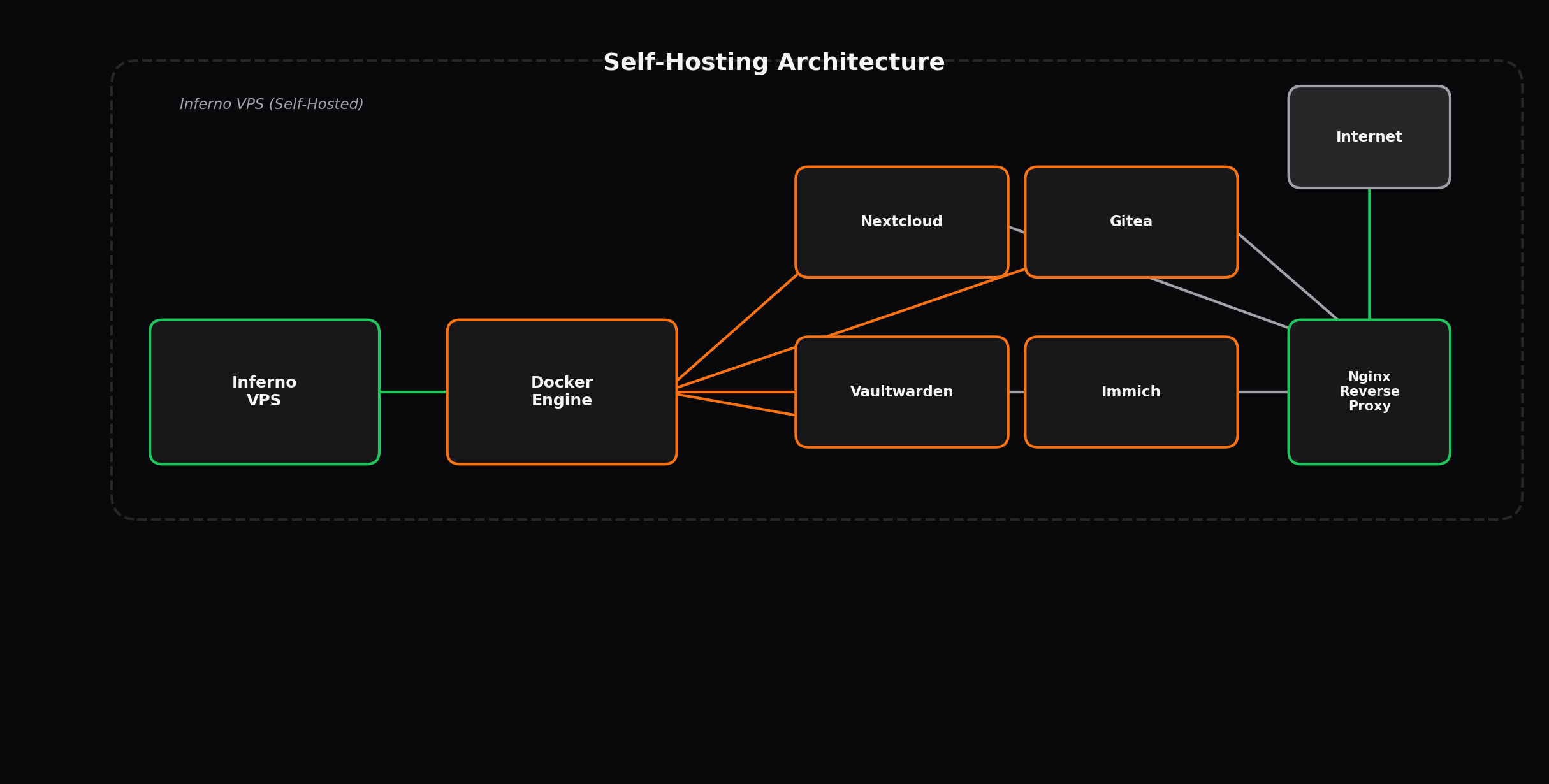
What Is Self-Hosting and Why Do It?
Self-hosting means running your own software. For containerization, see VPS for Docker on infrastructure you control, rather than relying on third-party SaaS platforms. For automation, self-host n8n for workflow automation, Dropbox, Slack, and Netflix, you deploy equivalent open-source alternatives on a VPS (or home server) and access them through a web browser or mobile app. The result is a personal cloud that you own, control, and can customize without vendor lock-in, price increases, or sudden service shutdowns.
The practical benefits extend beyond cost savings. Self-hosting gives you full control over your data. Compare storage in Best NVMe VPS Europe — you decide where it is stored, who can access it, and how long it is retained. There are no Terms of Service changes that suddenly restrict your usage, no algorithmic feeds manipulating your content, and no data mining. You can run services on your own domain name, which looks more professional and gives you permanent URLs that do not change if you switch providers.
In 2025, the open-source software ecosystem has matured to the point where self-hosted alternatives exist for virtually every major SaaS category. The tools have become significantly easier to deploy and manage, with Docker containers, Docker Compose, and management panels like CasaOS and Dockge eliminating much of the complexity that historically made self-hosting impractical for non-system-administrators.
Popular Self-Hosted Applications in 2025
File Sync and Collaboration — Nextcloud
Nextcloud is the most full-featured self-hosted alternative to Google Workspace and Dropbox. It provides file synchronization across devices, collaborative document editing (with Collabora or OnlyOffice), calendar and contacts management, email integration, talk/messaging, and hundreds of community plugins. Nextcloud requires a web server (Apache or Nginx), PHP 8.1+, and a database (MySQL/MariaDB or PostgreSQL). Storage requirements depend on your file collection, but plan for at least 50 GB for a typical personal setup with documents and photos.
Media Streaming — Jellyfin
Jellyfin is a free-software media system that provides a Netflix-like experience for your personal media library. It handles movies, TV shows, music, photos, and live TV with hardware-accelerated transcoding. Jellyfin clients are available for every major platform including smart TVs, mobile devices, and web browsers. Hardware transcoding requires an Intel QuickSync or AMD AMF capable GPU, though VPS instances typically use software transcoding. For software transcoding on a VPS, allocate at least 2 vCPUs for 1080p transcoding and 4 vCPUs for 4K transcoding.
Password Manager — Vaultwarden
Vaultwarden is a lightweight alternative implementation of the Bitwarden server API, written in Rust. It is compatible with all official Bitwarden clients (browser extensions, mobile apps, desktop apps) and uses a fraction of the resources of the official server. Vaultwarden requires virtually no storage and minimal RAM (typically under 50 MB), making it an excellent first self-hosted service that runs alongside anything else on your VPS.
Photo Management — Immich
Immich is a self-hosted Google Photos alternative that has quickly become the go-to choice for photo backup and management. It provides mobile app automatic backup (iOS and Android), face recognition, map view, album organization, sharing, and a responsive web interface. Immich uses machine learning for image classification and runs on PostgreSQL with Redis. Photo storage is the primary resource consideration: a 50,000-photo library consumes approximately 150-300 GB of storage.
Home Automation — Home Assistant
Home Assistant is the leading open-source home automation platform, integrating with thousands of smart home devices from hundreds of manufacturers. It runs entirely locally, does not require cloud connectivity, and provides automation, energy monitoring, dashboards, and voice control. Home Assistant itself is lightweight (under 500 MB RAM), but integrations, automations, and history databases can increase requirements significantly over time.
Document Management — Paperless-ngx
Paperless-ngx is a document management system that digitizes your paper documents using OCR (optical character recognition). You scan or photograph documents, and Paperless-ngx extracts text, categorizes them with tags, and makes the full text searchable. It integrates with email for automatic document ingestion. OCR processing is CPU-intensive, so allocate sufficient CPU headroom if you process large batches of documents regularly.
Resource Requirements for Self-Hosted Apps
The following table provides estimated resource requirements for each application running independently. When running multiple services on the same VPS, the total requirement is not simply the sum — Docker container overhead, the reverse proxy, and the operating system add baseline resource consumption of approximately 200-400 MB RAM and 0.1-0.2 vCPU.
| Application | RAM (Minimum) | RAM (Recommended) | CPU Cores | Storage | Notes |
|---|---|---|---|---|---|
| Vaultwarden | 50 MB | 128 MB | 0.1 | 1 GB | Minimal resources, runs anywhere |
| Pi-hole / AdGuard Home | 128 MB | 256 MB | 0.1 | 1 GB | DNS resolver + ad blocking |
| Homepage / Dashy | 64 MB | 128 MB | 0.1 | 0.5 GB | Service dashboard/landing page |
| Paperless-ngx | 512 MB | 1 GB | 1 | 10 GB | OCR is CPU-intensive |
| Home Assistant | 512 MB | 1 GB | 0.5 | 5 GB | Grows with device count |
| Nextcloud | 512 MB | 2 GB | 1 | 20 GB+ | Scales with files/users |
| Jellyfin | 1 GB | 2 GB | 2 | 50 GB+ | More CPU for transcoding |
| Immich | 1 GB | 2 GB | 1 | 100 GB+ | Storage depends on photos |
| Gitea (Git hosting) | 256 MB | 512 MB | 0.5 | 5 GB | Lightweight Git alternative |
| Uptime Kuma | 128 MB | 256 MB | 0.1 | 1 GB | Monitoring and status page |
| Traefik (reverse proxy) | 128 MB | 256 MB | 0.2 | 0.5 GB | Routes traffic to services |
Recommended VPS Specs for Self-Hosting
Minimal Setup (2-3 Services)
A minimal self-hosting stack might include Vaultwarden, Pi-hole or AdGuard Home, and a dashboard like Homepage. This lightweight combination runs comfortably on 1 vCPU and 1 GB RAM with minimal storage. These services are ideal for your first foray into self-hosting — they are easy to deploy, require minimal maintenance, and provide immediate practical value.
Recommended plan: Inferno VPS Starter — 1 vCPU, 1 GB RAM, 20 GB NVMe, 2 TB bandwidth at $3.49/month
Standard Setup (5-8 Services)
A standard self-hosting stack adds Nextcloud, Paperless-ngx, Uptime Kuma, and a reverse proxy (Traefik). This requires 2 vCPUs for comfortable CPU headroom (especially during Paperless OCR processing) and 4 GB RAM to keep all services responsive simultaneously. Storage needs jump to at least 80-100 GB to accommodate Nextcloud files and Paperless documents.
Recommended plan: Inferno VPS Professional — 2 vCPU, 4 GB RAM, 80 GB NVMe, 8 TB bandwidth at $6.99/month
Full Setup (10+ Services)
A comprehensive self-hosting setup includes all of the above plus Jellyfin for media streaming, Immich for photo backup, Gitea for code repositories, and Home Assistant for home automation. This demands 4 vCPUs (for media transcoding and OCR processing), 8 GB RAM, and substantial storage that varies based on your media and photo library size. For a media library of 2-5 TB, consider adding a block storage volume or using an external S3-compatible storage backend.
Recommended plan: Inferno VPS Enterprise — 4 vCPU, 8 GB RAM, 160 GB NVMe, 12 TB bandwidth at $14.99/month
Docker Compose Stack Example
The following is a production-ready Docker Compose configuration that deploys Traefik as a reverse proxy, Vaultwarden, AdGuard Home, Nextcloud, and Uptime Kuma. This stack runs on the Inferno Professional plan (2 vCPU, 4 GB RAM) with room to add additional services.
version: '3.8'

services:
  traefik:
    image: traefik:v3.0
    container_name: traefik
    restart: unless-stopped
    security_opt:
      - no-new-privileges:true
    ports:
      - "80:80"
      - "443:443"
    volumes:
      - /etc/localtime:/etc/localtime:ro
      - /var/run/docker.sock:/var/run/docker.sock:ro
      - ./traefik/traefik.yml:/traefik.yml:ro
      - ./traefik/acme.json:/acme.json
    networks:
      - proxy

  vaultwarden:
    image: vaultwarden/server:latest
    container_name: vaultwarden
    restart: unless-stopped
    volumes:
      - ./vaultwarden/data:/data
    labels:
      - "traefik.enable=true"
      - "traefik.http.routers.vaultwarden.rule=Host(`vault.yourdomain.com`)"
      - "traefik.http.routers.vaultwarden.entrypoints=websecure"
      - "traefik.http.routers.vaultwarden.tls.certresolver=letsencrypt"
    networks:
      - proxy

  nextcloud:
    image: nextcloud:29-apache
    container_name: nextcloud
    restart: unless-stopped
    volumes:
      - ./nextcloud/data:/var/www/html
    labels:
      - "traefik.enable=true"
      - "traefik.http.routers.nextcloud.rule=Host(`cloud.yourdomain.com`)"
      - "traefik.http.routers.nextcloud.entrypoints=websecure"
      - "traefik.http.routers.nextcloud.tls.certresolver=letsencrypt"
    depends_on:
      - db
    networks:
      - proxy

  db:
    image: mariadb:11
    container_name: nextcloud-db
    restart: unless-stopped
    volumes:
      - ./nextcloud/db:/var/lib/mysql
    environment:
      - MYSQL_ROOT_PASSWORD=changeme
      - MYSQL_DATABASE=nextcloud
      - MYSQL_USER=nextcloud
      - MYSQL_PASSWORD=changeme
    networks:
      - proxy

  uptime-kuma:
    image: louislam/uptime-kuma:1
    container_name: uptime-kuma
    restart: unless-stopped
    volumes:
      - ./uptime-kuma/data:/app/data
    labels:
      - "traefik.enable=true"
      - "traefik.http.routers.uptime.rule=Host(`status.yourdomain.com`)"
      - "traefik.http.routers.uptime.entrypoints=websecure"
      - "traefik.http.routers.uptime.tls.certresolver=letsencrypt"
    networks:
      - proxy

networks:
  proxy:
    external: true
Before deploying this stack, create the Traefik network and configuration file:
docker network create proxy
mkdir -p traefik vaultwarden/data nextcloud/data nextcloud/db uptime-kuma/data
chmod 600 traefik/acme.json
Reverse Proxy with Traefik
Traefik is the recommended reverse proxy for self-hosted Docker environments. Unlike Nginx or Caddy, Traefik automatically discovers Docker containers and configures routing based on container labels. When you add a new service, you simply add Traefik labels to its Docker Compose definition and Traefik routes traffic to it within seconds — no manual configuration file editing required.
Traefik also handles TLS certificate management through ACME providers. With Let's Encrypt as the certificate authority, Traefik automatically obtains, renews, and installs SSL certificates for all your subdomains. The entire process is zero-touch after initial configuration.
Traefik Configuration File
api:
  dashboard: false

entryPoints:
  web:
    address: ":80"
    http:
      redirections:
        entryPoint:
          to: websecure
          scheme: https
  websecure:
    address: ":443"

certificatesResolvers:
  letsencrypt:
    acme:
      email: your@email.com
      storage: /acme.json
      httpChallenge:
        entryPoint: web
This configuration enforces HTTPS by redirecting all HTTP traffic to HTTPS, automatically provisions Let's Encrypt certificates, and disables the Traefik dashboard for security (access it only when needed by temporarily setting dashboard to true). Each service in your Docker Compose stack uses Traefik labels to define its routing rules, as shown in the stack example above.
Backup Strategy
A backup strategy is non-negotiable for self-hosting. Unlike commercial SaaS where the provider handles backups, you are solely responsible for data protection. A robust backup strategy addresses three questions: what to back up, how often to back up, and where to store the backups.
What to Back Up
- Docker volumes: All persistent data directories for your services (Nextcloud files, Vaultwarden database, Immich photos, Paperless documents)
- Configuration files: Docker Compose files, Traefik configuration, environment variable files
- Database dumps: MySQL/MariaDB and PostgreSQL databases exported using mysqldump and pg_dump
- Certificates: Traefik acme.json file and any manually provisioned certificates
Backup Tools
Restic is the recommended backup tool for self-hosted environments. It provides encrypted, deduplicated, incremental backups with support for multiple storage backends (local, S3, B2, SFTP). A typical backup schedule for a full self-hosting setup runs daily database dumps, weekly full Restic snapshots, and daily incremental Restic backups. Retention policy of 7 daily, 4 weekly, and 6 monthly snapshots balances storage cost with recovery flexibility.
# Daily database backup cron job
0 3 * * * mysqldump -u root -p$MYSQL_ROOT_PASSWORD nextcloud | gzip > /backups/db/nextcloud-$(date +\%Y\%m\%d).sql.gz

# Weekly full restic backup
0 4 * * 0 restic -r s3:bucket /data backup --tag weekly
restic forget --keep-daily 7 --keep-weekly 4 --keep-monthly 6
Off-Site Storage
Never store backups on the same VPS as your production data. Use a separate storage backend: Backblaze B2 ($0.005/GB/month), Hetzner Storage Box ($0.01/GB/month), or a second VPS in a different data center. For a personal setup with 100 GB of data, Backblaze B2 costs approximately $0.50/month — a trivial expense for the peace of mind of knowing your data survives a VPS failure.
Testing Restores
A backup that has never been tested is not a backup. Schedule quarterly restore tests where you spin up a test VPS, restore your latest backup, and verify that all services start correctly and data is intact. Document the restore process so you can execute it under pressure if a real failure occurs.
Security Considerations
Firewall Configuration
Open only the ports your services need: TCP 80 and 443 for the reverse proxy, and SSH (TCP 22) restricted to your IP address. Block all other inbound traffic. Use UFW for straightforward firewall management:
ufw default deny incoming
ufw default allow outgoing
ufw allow 22/tcp
ufw allow 80/tcp
ufw allow 443/tcp
ufw enable
Container Security
Run containers as non-root users where possible. Add read_only: true to container definitions that do not need write access to the filesystem. Use Docker secrets or environment files (with restricted permissions) for sensitive data rather than embedding values in Docker Compose files. Keep images updated with docker compose pull && docker compose up -d on a weekly schedule.
Authentication and Access Control
Protect all services with strong, unique passwords. Where possible, enable two-factor authentication (Nextcloud, Vaultwarden). Use Authelia or Authentik as a single sign-on (SSO) provider for centralized authentication across all services. Consider placing admin interfaces behind an additional authentication layer with Traefik middleware.
Recommended Inferno Plans for Self-Hosting
| Self-Hosting Stack | Services | Inferno Plan | vCPU | RAM | Storage | Price/mo |
|---|---|---|---|---|---|---|
| Minimal | Vaultwarden, Pi-hole, Homepage, Uptime Kuma | Starter | 1 | 1 GB | 20 GB | $3.49 |
| Standard | Above + Nextcloud, Paperless-ngx, Traefik, Gitea | Professional | 2 | 4 GB | 80 GB | $6.99 |
| Full | Above + Jellyfin, Immich, Home Assistant | Enterprise | 4 | 8 GB | 160 GB | $14.99 |
| Power User | Full + CI/CD runners, monitoring stack, dev tools | Elite | 6 | 16 GB | 320 GB | $29.99 |
Inferno's NVMe storage is particularly valuable for self-hosting. Nextcloud file access, Immich photo loading, and Jellyfin media streaming all benefit from fast storage I/O. The dedicated NVMe allocation ensures your storage performance remains consistent even as you add more services, unlike shared storage architectures where I/O contention between containers can cause latency spikes during concurrent access.
Self-Hosted App Alternatives to Popular Services
| Commercial Service | Self-Hosted Alternative | Category | Difficulty | Resources Needed |
|---|---|---|---|---|
| Dropbox / Google Drive | Nextcloud | File Sync | Medium | Moderate |
| 1Password / Bitwarden | Vaultwarden | Passwords | Easy | Minimal |
| Google Photos | Immich | Photo Management | Medium | Moderate-High |
| Netflix / Plex | Jellyfin | Media Streaming | Medium | Moderate-High |
| SmartThings / Alexa | Home Assistant | Home Automation | Medium | Low-Moderate |
| Notion / Evernote | Outline / Joplin | Notes | Easy | Low |
| Grafana Cloud | Grafana + Prometheus | Monitoring | Medium | Moderate |
| GitHub | Gitea / Forgejo | Git Hosting | Easy | Low |
| Slack / Discord | Mattermost / Element | Messaging | Medium | Moderate |
| DocuSign | Paperless-ngx + Documenso | Documents | Easy | Low-Moderate |
Common Pitfalls and How to Avoid Them
Over-Provisioning Services
A common mistake for new self-hosters is allocating excessive resources to each service. Most self-hosted applications are designed to run efficiently on modest hardware. Start with the minimum recommended resources and increase only if monitoring shows consistent resource exhaustion. Uptime Kuma with its built-in metrics dashboard is an excellent tool for tracking actual resource usage across your stack.
Ignoring Updates
Unpatched software is the most common security vulnerability in self-hosted environments. Set up a weekly routine to pull updated Docker images and restart containers. Tools like Watchtower can automate this process, though automatic updates carry some risk of breaking changes. A balanced approach is to automate security updates while manually reviewing feature updates.
No Monitoring
Deploy Uptime Kuma as one of your first services. It monitors HTTP endpoints, TCP ports, and DNS records, alerting you when services go down. Without monitoring, you may not discover an outage until you try to use a service yourself. Uptime Kuma's resource requirements are minimal (128 MB RAM, 0.1 vCPU) and it provides a professional status page that you can share with family members or team members who use your self-hosted services.
Single Point of Failure
A single VPS is inherently a single point of failure. While complete redundancy adds complexity and cost, you should at minimum maintain tested backups and document your full deployment process so you can recreate your environment on a new VPS within an hour if needed. For critical services, consider a secondary VPS running Keepalived or a cloud load balancer for automatic failover.
Pros and Cons of VPS Self-Hosting
Advantages
- Full data ownership and privacy — no third party has access to your files, passwords, or communications
- Cost savings: a $6.99 VPS replaces multiple commercial SaaS subscriptions worth $20-50+/month
- No vendor lock-in: export your data anytime, migrate to any provider, modify source code as needed
- Customization: configure every service exactly to your preferences without feature restrictions
- Reliability: NVMe-backed VPS typically outperforms shared hosting and budget cloud services
- Learning opportunity: self-hosting builds valuable system administration and DevOps skills
- Permanent URLs: use your own domain name that never changes regardless of hosting provider
Considerations
- Maintenance responsibility: you handle updates, backups, security, and troubleshooting
- Single point of failure without additional investment in redundancy
- Storage constraints: VPS storage is more expensive than local NAS or external drives for media libraries
- Network dependency: self-hosted services are inaccessible during internet outages (unlike local hosting)
- Legal responsibility: you must comply with GDPR, data protection regulations, and terms of your hosting provider
- Time investment: initial setup takes 2-10 hours depending on the number of services and your experience level
Conclusion
Self-hosting on a VPS in 2025 is more accessible than ever, thanks to mature Docker-based deployment, automated TLS management with Traefik, and a rich ecosystem of open-source alternatives to virtually every commercial SaaS product. Inferno VPS provides an excellent foundation for self-hosting with dedicated NVMe storage for fast file access, AMD Ryzen processors for responsive service performance, and pricing that makes running 5-10 services for $6.99/month a practical alternative to paying for multiple commercial subscriptions.
Start with a minimal stack (Vaultwarden, Pi-hole, and a dashboard) on the $3.49 Starter plan to get comfortable with Docker and basic system administration. As your confidence grows, add Nextcloud, Paperless-ngx, and monitoring to build a comprehensive personal cloud on the $6.99 Professional plan. For power users running media servers and photo management, the $14.99 Enterprise plan with 4 vCPUs, 8 GB RAM, and 160 GB NVMe provides the headroom for a full-featured self-hosting environment. Use code at checkout for 10% off any plan.